How to View Your CCTV Cameras on Your Phone Safely
Checking your shop, home or hotel entrance from your phone is one of the most useful things a CCTV system can do. It is also the part most often set up in a hurry, and a careless set-up can let strangers try to log in to your recorder.
10 min read
Updated
Extrion Knowledge Center
Checking your shop, home or hotel entrance from your phone is one of the most useful things a CCTV system can do. It is also the part most often set up in a hurry, and a careless set-up can let strangers try to log in to your recorder.
This guide, for owners of their own systems, covers how remote viewing works, safe set-up, troubleshooting and removing old access.
Remote viewing is convenient, as long as the connection is set up safely.
How remote viewing works
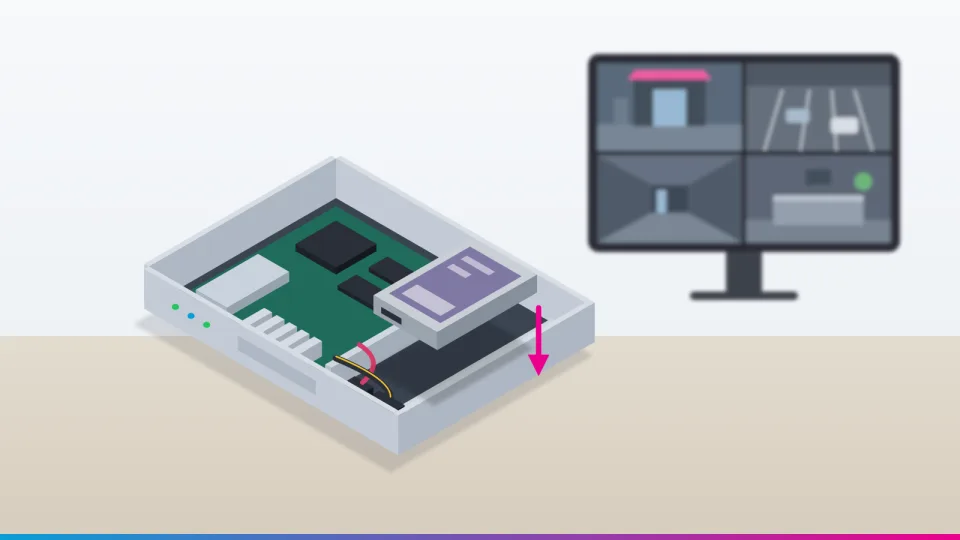
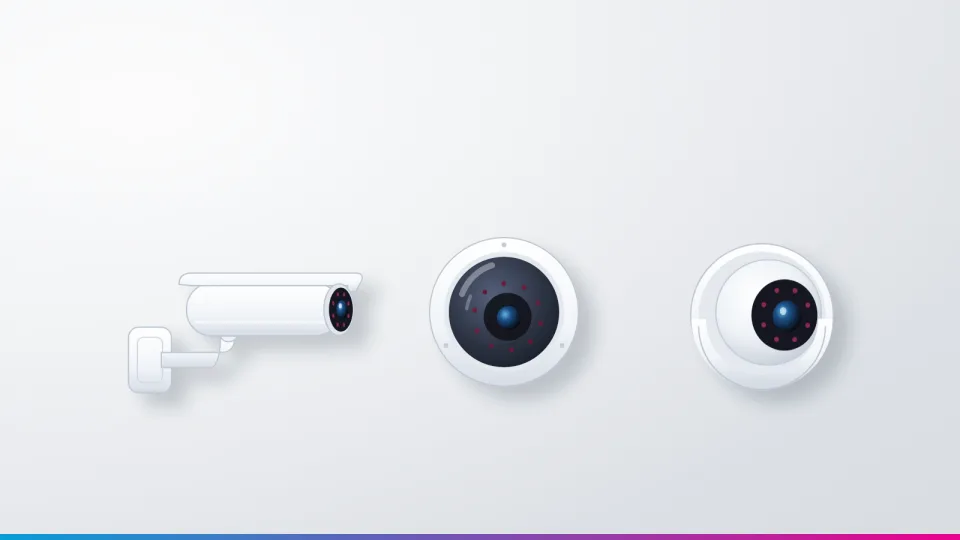
Your cameras send video over cables (or Wi-Fi) to a recorder: an NVR for IP cameras, or a DVR for older analogue/HD-analogue cameras. Some standalone cameras record to a memory card or the cloud instead. If you are not sure which type you have, CCTV Cameras Explained covers the basics.
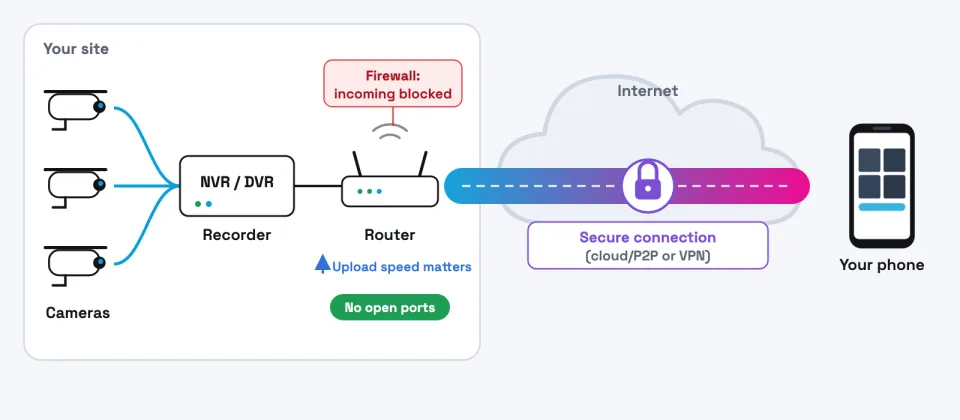
When you open the app on your phone, it has to reach that recorder across the internet. The recorder sits behind your router, which by design blocks unsolicited connections coming in from outside. So something has to make the connection possible. There are three common ways, and they are not equally safe.
The recorder stays inside your network; only a secure connection reaches your phone.
What each part does
Part
Its job in remote viewing
What can go wrong
Camera
Captures video and sends it to the recorder
Weak or default password if it is reachable directly
Recorder (NVR/DVR)
Stores footage and serves live and recorded video to apps
Outdated firmware; shared admin login; web page exposed to the internet
Router
Connects your site to the internet and blocks unwanted incoming traffic
Port forwarding or UPnP opening holes you did not intend
Internet connection
Carries video out of your site
Low upload speed causes buffering; a power cut without a UPS takes it offline
Your phone and app
Logs in and displays the video
Old app version, weak phone lock, mobile data limits
Upload speed matters more than download speed. Internet plans are sold on download speed, but remote viewing uses your site's upload. Watching also uses your phone's mobile data, and the full-quality stream uses far more than the sub-stream (the lower-quality second stream most recorders offer). Our CCTV storage calculator shows typical bitrates per camera, a rough guide to the bandwidth each live view needs.
The three ways to connect
1. The manufacturer's cloud or P2P service. The recorder makes an outgoing connection to the maker's service, and your app finds it by serial number or QR code. No router ports are opened. For most owners this is the simplest safer option, if the account is well protected. The trade-off: you rely on the manufacturer's service and its security.
2. A VPN (virtual private network). Your phone joins your site's network through an encrypted tunnel, then the app talks to the recorder as if you were standing in the building. The recorder itself is never visible to the internet. Options include:
a VPN server built into a business router or firewall;
a modern "mesh" VPN (WireGuard-based services and similar), which connects devices to each other through outgoing connections and often works even where the ISP does not give you a public IP address.
3. Direct port forwarding. The router passes internet traffic straight to the recorder. It is quick to set up, and it puts your recorder's login in front of anyone scanning the internet. We do not recommend it as a default.
Warning Hikvision's command-injection flaw CVE-2021-36260 let attackers send malicious commands to the web server of affected cameras and recorders. CISA added it to its Known Exploited Vulnerabilities catalog in January 2022, meaning it was actually used in attacks. A device whose web server is open to the internet can be attacked before the owner has a chance to update it.
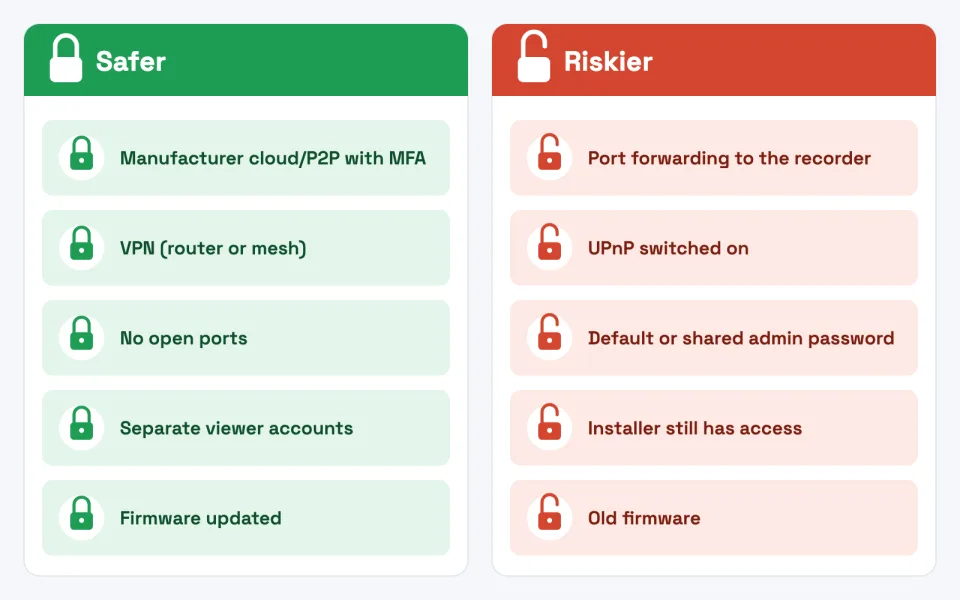
Small choices at set-up make a big difference to how exposed your recorder is.
Why exposing the recorder is risky
The UK's National Cyber Security Centre (NCSC) advises camera owners to consider turning off UPnP and port forwarding on the router, because criminals can use them to reach devices such as cameras on your network. The US Cybersecurity and Infrastructure Security Agency (CISA) summarised the same advice, warning that attackers can get live feeds or images from poorly secured cameras. More broadly, CISA's internet exposure guidance tells organisations to find what is reachable from the internet, remove what does not need to be, and put necessary remote access behind a VPN or similar controlled gateway.
In plain terms: any login page on the open internet will be found and tried, and recorders often go years without updates.
UPnP (Universal Plug and Play) lets devices open router ports by themselves, so a recorder can expose itself without anyone deciding to. Keep it off unless you need it.
Safe set-up, step by step
Update first. Install the latest firmware on the recorder and cameras from the manufacturer's official support site or the recorder's built-in update option. Turn on automatic updates if offered. The NCSC lists updates as a core step, and CISA recommends automatic updates wherever possible.
Set a strong, unique admin password. Use a long passphrase, never a default. CISA recommends at least 16 characters, a different password for every account, and a password manager. The NCSC's three random words method is easy to remember. Our password generator can help.
Choose the access method. Use the manufacturer's cloud/P2P service or a VPN. Follow the manufacturer's own documentation, because menu names differ between brands and firmware versions.
Protect the cloud account. Use a unique password and turn on multi-factor authentication (MFA, sometimes called 2-step verification) if the service supports it. CISA explains that MFA stops someone who has stolen your password from logging in.
Turn off what you do not use. Disable UPnP on the router and on the recorder, remove any old port-forwarding rules, and switch off services you do not need. Hanwha Vision's NVR hardening guide, for example, suggests unchecking DDNS and UPnP features if you do not need them.
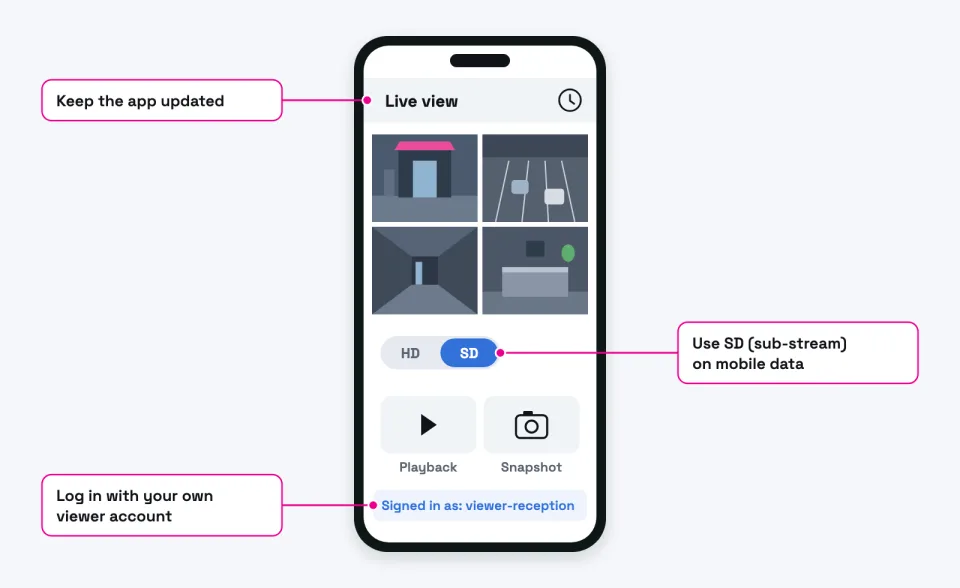
Create separate viewer accounts (see below), then log in on your phone with your own account, not the admin.
Lock your phone with a PIN or biometric, and keep the app updated from the official app store.
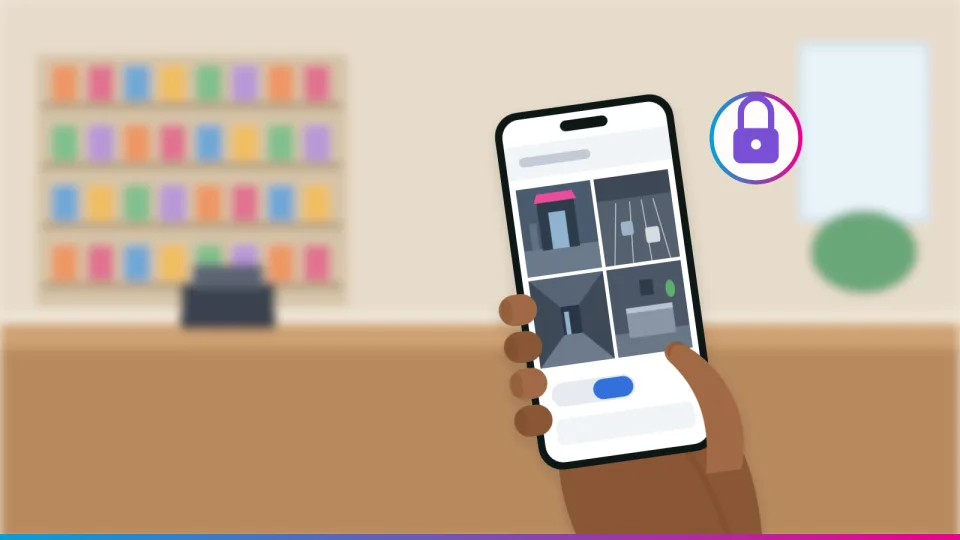
Illustrative only. Your app's layout and labels will differ.
Most recorders let you create several users with different permissions. Use that.
One admin account, held by the owner (or a trusted IT person), used only for settings.
Separate viewer accounts for each manager or family member, with live view and playback only. Give export or PTZ control only to those who need it.
No shared logins. If everyone uses "admin", you cannot tell who did what, and you cannot remove one person without changing it for everyone.
Hanwha Vision's guide recommends creating extra user accounts with minimal privileges, a principle that applies to any brand.
Tip Review the user list and the recorder's log every few months. Delete accounts nobody recognises.
When a VPN is the right choice
A VPN is a good fit when:
you need the recorder's full settings remotely, not just the app view;
you have several sites, or other systems (access control, alarms) to reach;
you prefer not to depend on the manufacturer's cloud, or policy forbids it;
your router or firewall supports a VPN, or a mesh VPN can run on an always-on device on site.
If family members just need simple one-tap viewing and nobody can manage VPN accounts, a well-protected manufacturer cloud account is usually the practical choice.
Troubleshooting: check these before blaming the camera or the ISP
When the app shows "offline" or the video keeps buffering, work through this order:
Is the site powered? A power cut takes down the recorder and the router. A UPS on both keeps viewing alive during short outages.
Does it work on site? Connect your phone to the site's Wi-Fi and open the app. If local viewing fails, the problem is the recorder or network, not the internet.
Is the internet up at the site? Check another device there, and the router's status lights.
Is the recorder online with the cloud service? Most recorders show a cloud/platform status in their network settings. "Offline" here often means a wrong DNS setting or a changed router.
Did anything change? A new router from the ISP, a changed Wi-Fi password, or a new IP address can break the connection.
Is your phone's connection good enough? Try Wi-Fi instead of mobile data, or the other way round.
Switch to the sub-stream (often called "fluent", "SD" or "standard" quality) if video buffers. Low upload speed at the site is the most common cause.
Update the app and log out and in again.
Only then contact the camera supplier or ISP, and tell them what you tested.
Warning If someone suggests "just open the ports" to fix it, ask why the cloud service or VPN cannot be fixed instead.
Removing access for former staff or installers
When an employee leaves, or you change installer, do this the same day:
Change the recorder admin password and any passwords the person knew.
Delete or disable their user account on the recorder.
In the manufacturer's cloud account, remove any device sharing to their account.
Check who owns the cloud account the recorder is registered to. If it is the installer's account, move the device to an account you control, following the vendor's documented unbind/reset procedure.
Review VPN users and revoke theirs.
Check the router for port-forwarding rules or remote-management access you did not authorise.
Look at the recorder's log for unexpected logins.
If you suspect someone has taken control of the device, the NCSC's smart devices guidance advises resetting it following the manufacturer's instructions.
Questions to ask your installer before you accept the system
Which access method did you set up: cloud/P2P, VPN or port forwarding? Why?
Are any router ports forwarded, and is UPnP off?
Whose cloud account is the recorder registered to? Can it be in my name?
Have you handed over the admin password, and will you remove your own access?
What firmware version is installed, and how will updates be done?
Have you created separate viewer accounts with limited permissions?
Is MFA available on the app account, and is it switched on?
Are the recorder and router on a UPS?
Can I have written handover notes (users, IP addresses, access method)?
Frequently asked questions
Is the manufacturer's app safe to use?
Usually it is the simplest safer option, because nothing is opened on your router. Protect the account with a unique password and MFA, and keep everything updated.
Do I need a static IP address to view my cameras remotely?
Not for cloud/P2P viewing or most mesh VPNs, which rely on outgoing connections. A static or public IP is mainly needed for port forwarding or a router-hosted VPN.
Why does my video work at home but buffer on mobile data?
Usually the site's upload speed or your mobile signal is the limit. Switch to the lower-quality sub-stream, view fewer cameras at once, or check the site's upload speed.
Should I turn off remote viewing if I never use it?
Yes. The NCSC suggests disabling remote access you do not need. You can switch it back on later.
My installer set it up with port forwarding. Is my system already hacked?
Not necessarily. Update the firmware, change passwords, check users and logs, then move to cloud or VPN access and remove the forwarding rules.
Next steps
Three quick wins for today: update the recorder firmware, set a strong unique admin password, and give each person their own viewer account. Then confirm no router ports point to the recorder. For a wider view of your security basics, try our free cybersecurity checklist.
This guide is general information to help you plan. Prices, product features and regulations change, so confirm the details for your own site before you buy.
We use essential cookies to keep this website secure and working. With your permission we also remember your preferences and play embedded videos. No advertising trackers, ever. Read our cookie notice

 Security & Surveillance
10 min
Security & Surveillance
10 min